
INVENTORY SOFTWARE FOR SCHOOLS
Know what you have.
Find what you need.
Your school’s equipment, supplies, and loans in one shared inventory.
No account needed for the demo. School access is currently by approval.
Already approved? Set up or join your school ↗
Illustrative school lab · AI-generated image
Built for the places
hands-on learning starts.
hands-on learning starts.
Physics labs
Engineering workshops
Classroom kits
Shared storerooms
SEE NEATNEST IN ACTION
Find equipment.
Keep your team up to date.
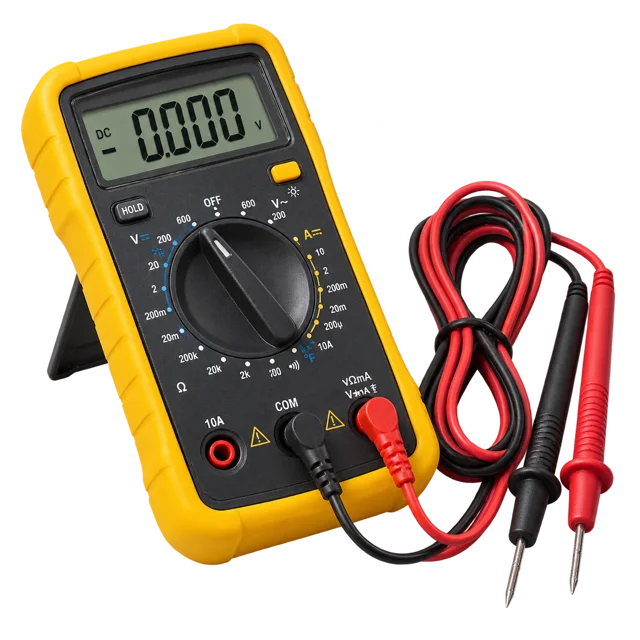
Know who has your equipment and when it is due.
Try it in the sample inventory ↗Keep your stock accurate when supplies change places.
Try it in the sample inventory ↗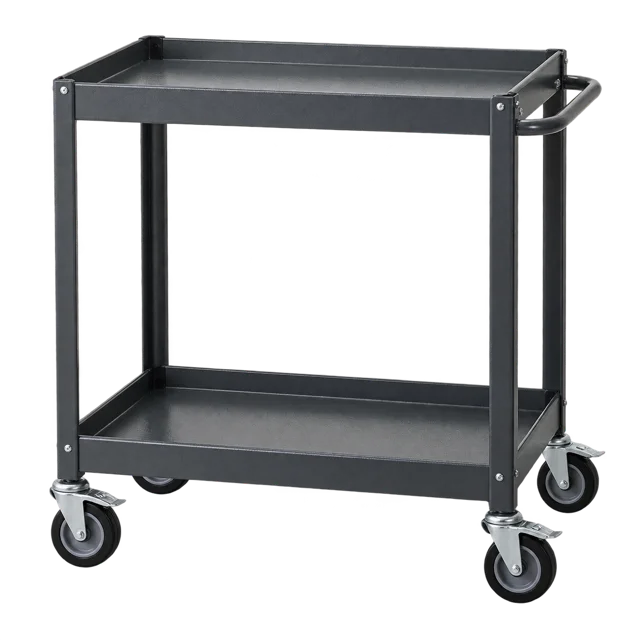
Move your cart, box, or bag. Update every item inside.
Try it in the sample inventory ↗05 / AI-POWERED INVENTORY HELP
Use AI to identify supplies
and understand your inventory.
Automatically fill inventory details from a photo.
AI analyzes the equipment in your photo and suggests its name and category. You check the details, add its location, and confirm the record.
AI can make mistakes. You approve every item before it enters inventory.
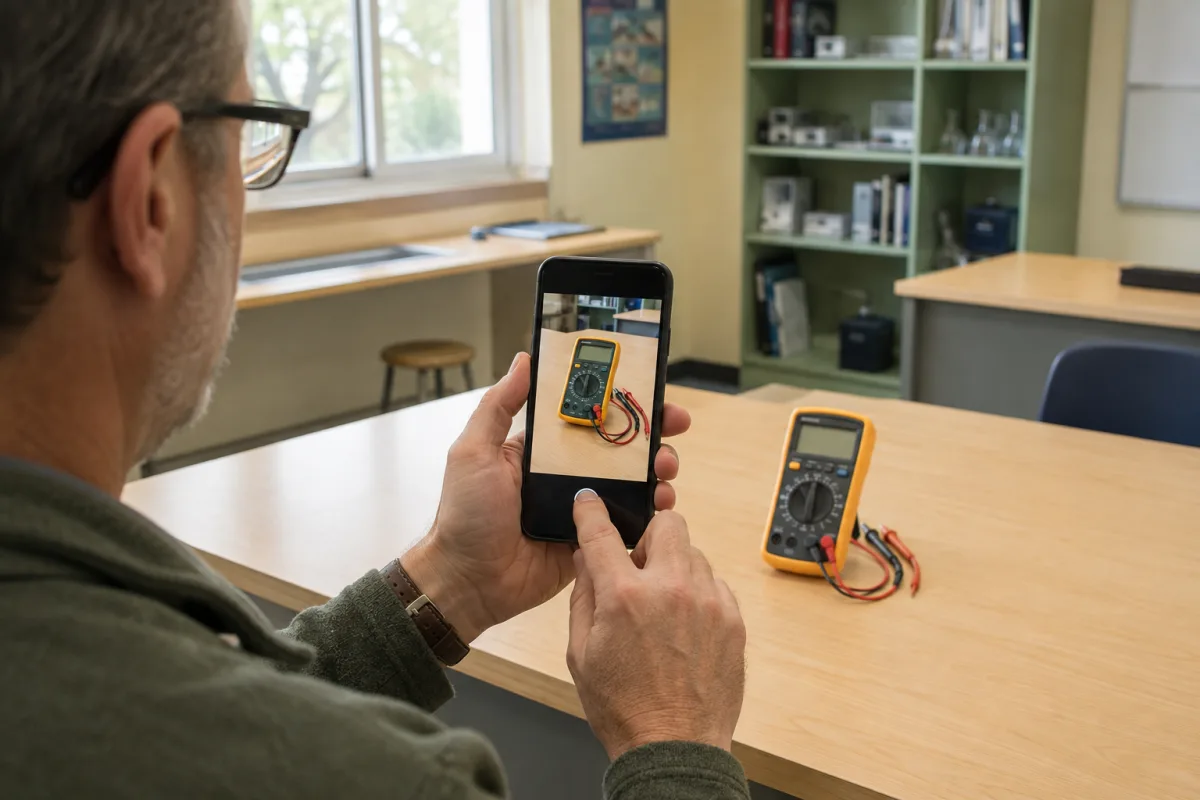
Create inventory drafts from multiple photos at once.
Upload a batch of equipment photos—up to 100 at a time. Review the AI drafts, check quantity and location, then approve each item. No barcode labels needed.

AI INVENTORY ASSISTANT
Ask who has equipment, what’s running low, and what changed.
Choose daily or weekly summaries, prepared when you open Home.
Your assistant reads your school’s records. It does not move items, change quantities, or send emails.
Example question“Summarize what happened to the inventory in the past 24 hours.”AI answers need checking. Shared usage limits apply.
Recognition has a usage limit. Manual entry and photo uploads remain available. Illustrative workflows—not speed or accuracy benchmarks. Read the details ↓
Try NeatNest with sample inventory.
Interactive example Sample data · No account needed
Sample school · Teacher
Welcome, Alex Morgan.
What do you need for your next class?
Your shortcuts
1Item types
8Available units
0Checked out
Ask about your school’s inventory.
Sample recorded facts, not a live AI answer. In your workspace, the read-only assistant uses your school’s records.
Sample inventory. Try a checkout or move a container.
Find it. Pin it. See where it belongs.
Search items and places, switch between compact lists and photo cards, and see available quantities at each location.
Keep your supplies and loans separate.
Update stock in Inventory. Record borrowing and returns in Checkouts. Move a cart, box, or bag from Containers.
Plan lessons with your colleagues.
Share advisory equipment bookings, reuse lesson kits, and track supply requests. Your administrator manages invitations and roles.
- 1
Set up or join your school
Create a school or accept an administrator’s invitation. Add your first location.
- 2
Add your equipment and supplies
Enter items manually or review AI photo suggestions before confirming them.
- 3
Update items as you use them
Record borrowing, returns, moves, and supplies used. Your team sees the changes.
HOW IT HELPS YOUR SCHOOL
More confidence in your classroom.
More clarity across your school.
Walk into your next lesson prepared.
- Recognize your equipment by photo and see where it belongs.
- Check you have enough for your class before you borrow.
- Save your lesson materials lists and spot what you’re missing.
- Flag damaged items so the next teacher knows.
Make informed decisions for your school.
- Check what you own before approving another purchase.
- Bring your staff together, with access you control.
- Review supply requests and track incoming deliveries.
- Review activity and export your school’s records.
MAKE MORE OF WHAT YOU ALREADY HAVE
Your next lesson
might already be
on the shelf.
Check what your school already owns before ordering more.
Explore your sample storeroom ↗NeatNest is in pilot; there are no published customer testimonials or measured time savings yet.
Frequently asked questions.
Can we borrow several items or count a shelf?
Yes. Add several items to one checkout, choose the responsible staff and due date, then review and confirm. In Locations, a guided stocktake lets you count quantity-tracked stock one item at a time and continue later. Both actions are recorded.
Do we need to organize the whole storeroom first?
No. Start with one shelf, a shared cart, or the equipment you use every week. Add a location and a few items, then build the inventory as staff use it.
Do items need barcodes or QR labels?
No. Names, photos, and locations are enough to get started. Photo recognition is optional and a teacher must confirm its suggestions. Recognition is not a guarantee of identity, condition, or safety.
Can a teacher use an ordinary school email?
Yes. Use your school email and click the verification link we send you. To join your school’s shared inventory, you also need an invitation from its administrator. During the pilot, your account must be approved for site access; public signups are not open yet.
Should I create a school or join one?
Join if your school already uses NeatNest: ask its administrator for an invitation to see the same items as your colleagues. Create a school if you’re setting up a new, separate inventory. A matching school name or email address does not automatically give anyone access.
Can I use it on my phone or without internet?
Yes. Open NeatNest in your phone’s browser or add a home-screen shortcut—no app-store download is needed. Enable offline mode on a trusted device to search saved records and draft loans, returns, moves, stock updates, and reference photos. Those changes reach your school’s shared inventory only after you reconnect, review, and confirm them.
What does it cost?
School subscription pricing has not been announced, and the pilot has no subscription checkout. Photo recognition and the inventory assistant share a $1 total monthly AI usage cap across the entire NeatNest site—not $1 per school and not a subscription price. Manual entry and recorded-fact summaries remain available when AI pauses. Hosting, photo storage, sign-in, and email services have separate limits and potential costs.
What can the AI inventory assistant tell me?
Ask from Home about current borrowing, overdue equipment, low stock, or recent inventory changes. Suggested questions help you get started. You can opt into daily or weekly summaries, refreshed when you open Home; these are not background jobs or emails. Answers use your school’s recorded data and cannot change it. Check the source records before acting.
What if AI photo recognition gets an item wrong?
AI suggestions can be wrong. Check the name, quantity, and other details before confirming a draft; it is not added to inventory until you approve it. Recognition pauses at the spending limit, but you can still enter items and add photos manually. Avoid including students, faces, or personal information in photos.
Can we take our data with us?
Yes. Administrators can download inventory lists as CSV files for spreadsheets, plus backups containing records and original photos. Store copies somewhere approved by your school. School owners can restore a supported backup into a separate inventory without overwriting the original; file and record limits apply.
Is this a safety or compliance system?
No. Fault reports and holds help staff track readiness, but do not replace inspections, chemical records, safety procedures, or your school’s approval of a new service.
One shelf. One shared cart.
A clearer picture for your team.
School access is currently by approval; public signups are not open yet.
Already a member? Sign in or accept your school invitation.